
Configuring proxy server settings in the Safari browser on Mac OS X
You can download these instructions as a PDF file here.
The proxy server settings you configure in the Safari browser on Mac OS X correspond to the Mac OS X system settings and are adopted by many programs. Exceptions to this include programs such as Thunderbird and Firefox, in which you can either configure your own settings or explicitly specify the use of the Mac OS X system settings.
To configure the proxy server settings, please proceed as follows:
- Launch the Safari browser
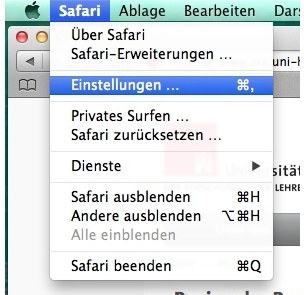
- Select the menu item > “Safari” > “Preferences...” (Fig. 1a)
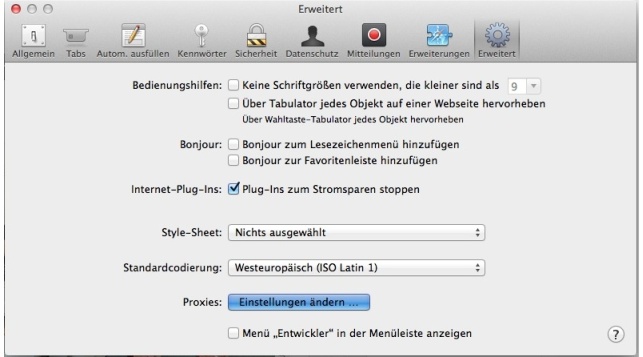
- In the window that opens, select the “Advanced” tab and, in the ‘Proxies’ section, click the “Change Settings...” button (Fig. 1b)
 |
|
Fig. 1a: Settings |
 |
|
Fig. 1b: Proxies: Change Settings... |
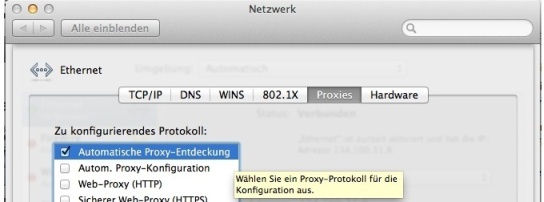
- To configure the settings automatically, check the box next to “Automatic proxy detection” (Fig. 2a)
 |
|
Fig. 2a: Automatic configuration |
 |
|
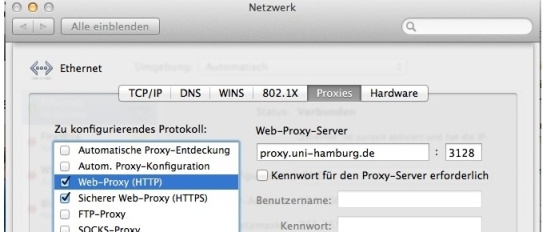
Fig. 2b: Manual configuration |
As an alternative to automatic configuration, you can also configure the settings manually.
- To do this, please check the box next to all protocols for which the proxy server is to be used and enter “proxy.uni-hamburg.de” as the address and “3128” as the port (Fig. 2b)
- Finally, confirm all settings by clicking the ‘OK’ or “Apply” button