
Zoom Recording
On this page, we briefly explain how to record events using Zoom. Please note that due to legal restrictions, recording is only permitted during webinars; recording during a regular Zoom meeting is prohibited.
Recording
Legal Framework
To ensure that the recording complies with data protection regulations, recorded events are conducted via Zoom in the form of a webinar. This ensures that only the presenters are filmed.
Other individuals must not be seen or heard and must be informed before the event begins that they may ask questions only via Zoom’s chat function.
If students and participants attend the event in person, they must be informed before and at the start of the event that questions may only be asked via the chat and Q&A functions and that this requires logging in as a webinar participant using a personal mobile device.
Furthermore, a service directive regulates the settings to prevent other people who are not presenters from being seen or heard in the recordings.
Recording is not permitted outside of courses.
For the purpose of reviewing the course, the recordings may only be made available to the participants of the course with restricted access.
Publication of a recording
You can now use the Lecture2Go video platform to publish your recorded event.
Instructions for uploading videos to Lecture2Go
Webinar
To record an event on Zoom, the appropriate license must first be assigned to your Zoom account.
Next, schedule the webinar using the Zoom web interface. Then host your event using the scheduled webinar. Please note the different roles that can be assigned to participants.
License
To use the webinar feature, a webinar license must be assigned to your Zoom account. Please use our form to request this; the license will then be assigned automatically. The form can also be used to request licenses for third parties.
To do this, you must already have a university Zoom account. If you have not used Zoom before, please sign in once at https://uni-hamburg.zoom.us (click the “Sign In” button).
Hosting a webinar
Settings During a Webinar
- Clicking the “Participants” button displays an overview of discussion participants and viewers.
- The host can grant or revoke the role of discussion participant for viewers.
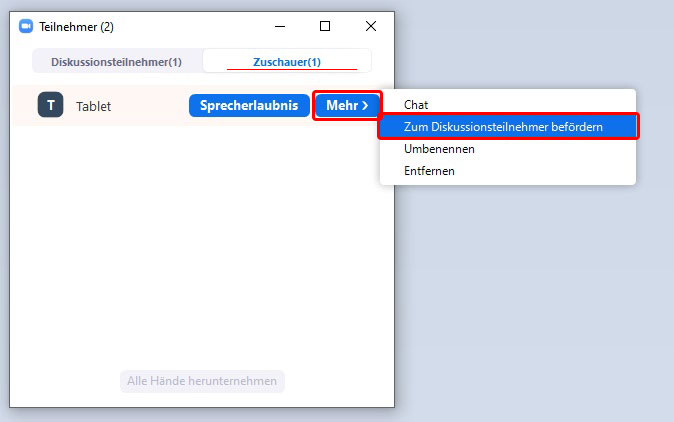
- Comments from discussion participants are recorded, but their video feed and name are not—or only after the participant enables their own video
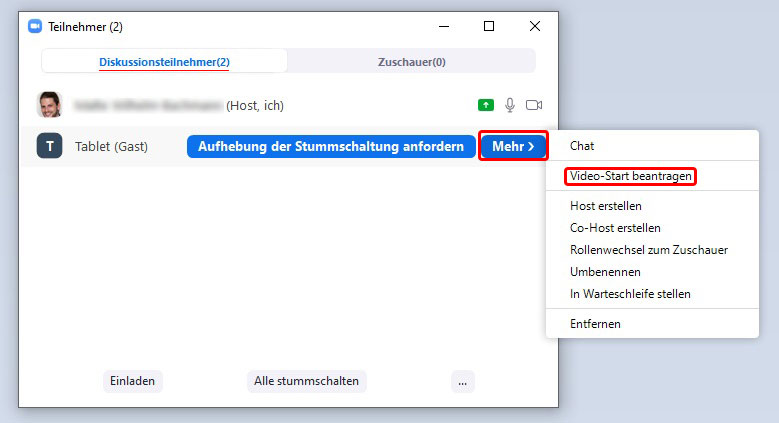
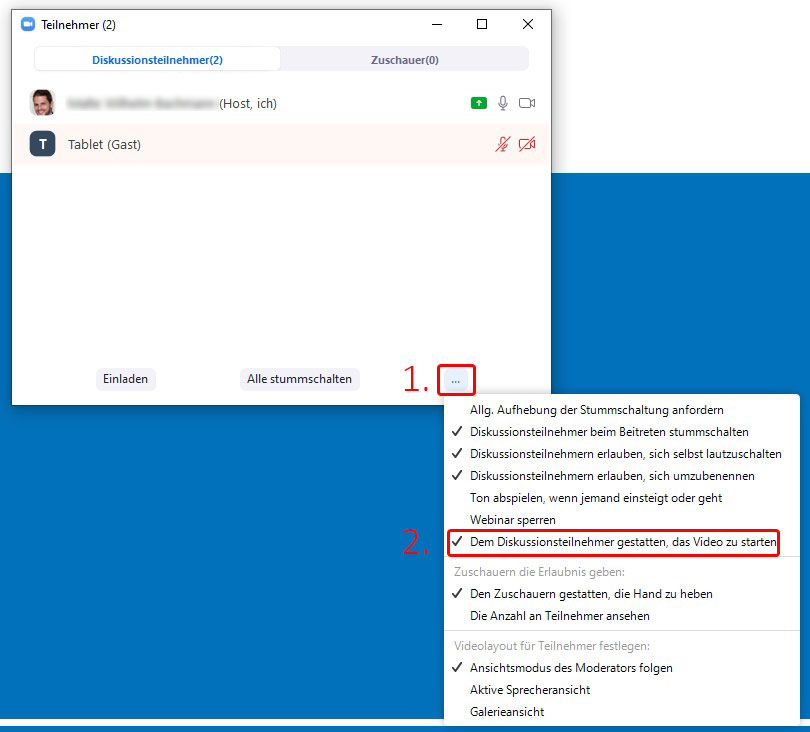
- If participant video was disabled during webinar setup, discussion participants can only start their video once it has been enabled as follows:
- Viewers can ask questions via the chat, which is not recorded
Recording a Webinar
- Starting the Recording
- During the Webinar Recording can be started at any time during the webinar using the “Record” button.
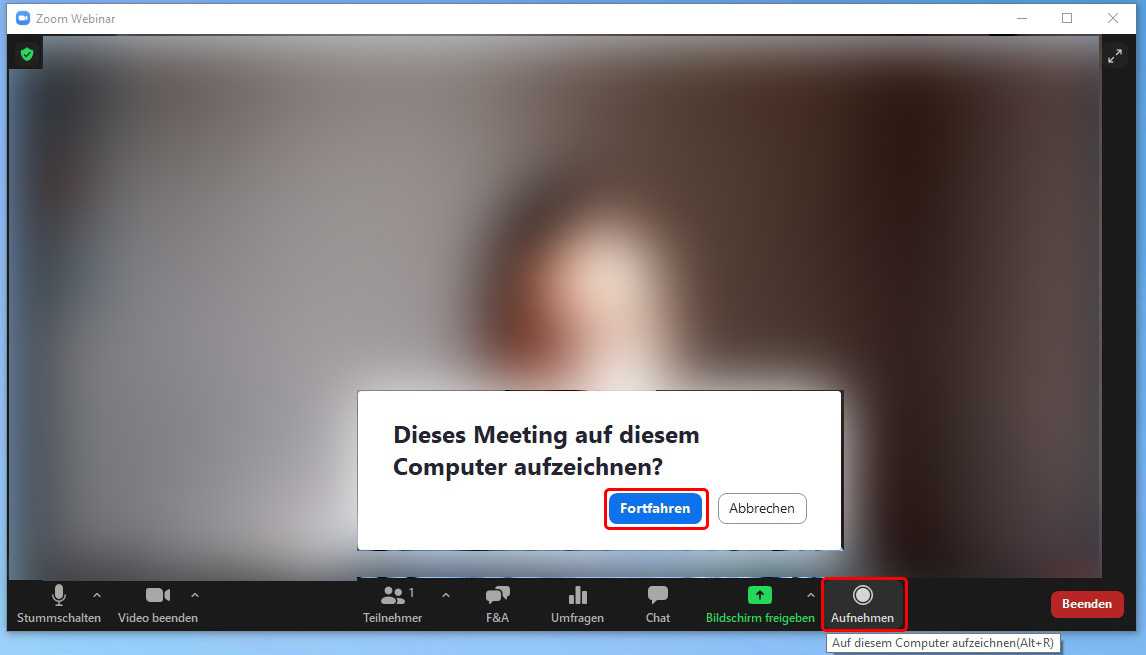
- During screen sharing <\br> During screen sharing, recording can be started via the toolbar at the top of the screen

- Settings options during recording
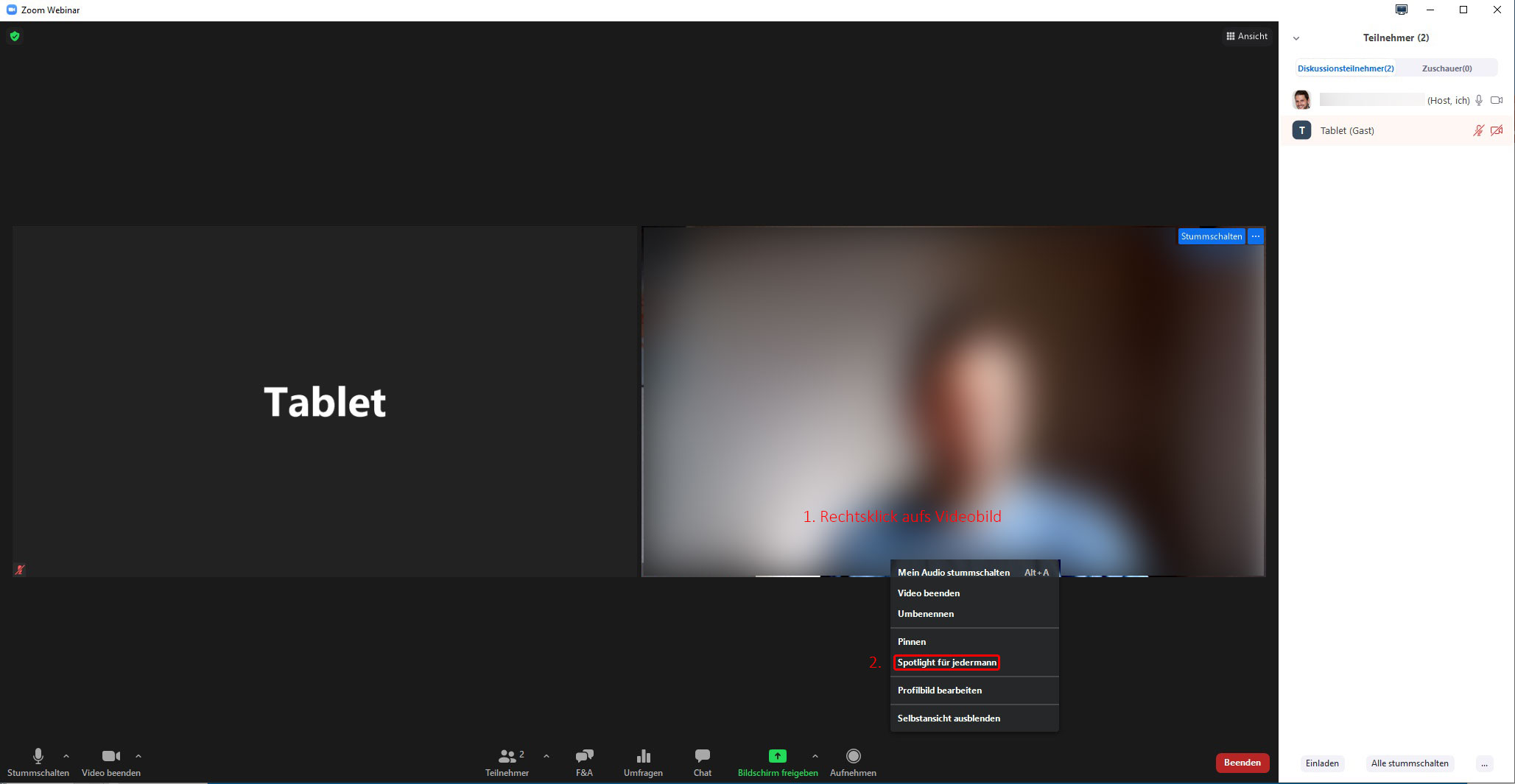
- To set your own video as the default video for all participants, select the “Spotlight” option. This setting forces your video to be displayed in full screen for all participants. The previously visible videos of all other participants will be hidden as a result.
-
- Stopping the recording
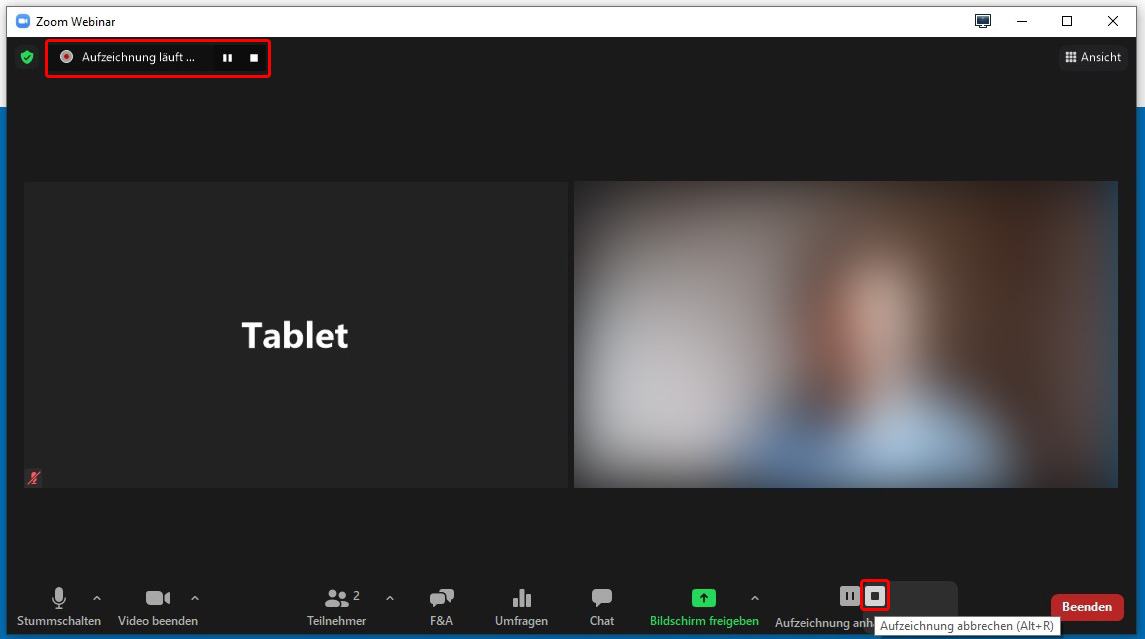
- The recording can be paused or stopped at any time during the webinar.
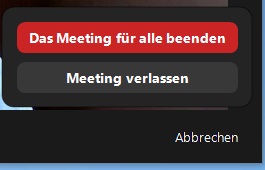
- The recording ends automatically when the webinar ends.
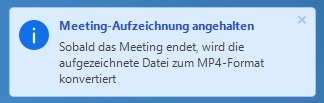
- After the webinar ends, the recording is first converted before it becomes available for viewing.
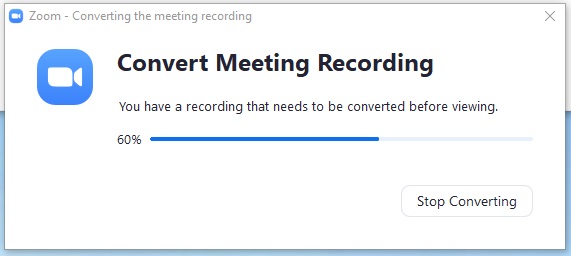
- Viewing the finished recordings
- Once the conversion is complete, the folder containing the finished recordings usually opens automatically. On Windows, the default location is “My Documents” > ‘Documents’ > “Zoom”.
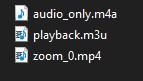
- Once the conversion is complete, the folder containing the finished recordings usually opens automatically. On Windows, the default location is “My Documents” > ‘Documents’ > “Zoom”.
Mobile Devices
If a participant wishes to log in via a mobile device, Zoom currently requests a name and an email address. This cannot be provided, but the university is in the process of clarifying this issue. Participants should be informed in the invitation that they can enter any name and use “a@b.de” as the email address. Once this issue has been resolved by Zoom, the prompt will no longer appear.