Migrate calendar from the "old Surfmail" webmailer
If you want to continue using a calendar or tasks from the previous Surfmail web client, you must export them and import them into UHHCloud. The new Surfmail no longer has a calendar feature.
You can also synchronize the UHHCloud calendar with mobile phones or common email apps, such as Thunderbird. However, how well email invitations (RFC 3283) work depends on the specific combination of email and calendar apps—we have successfully tested this with Thunderbird.
Part 1 - Save the old calendar
- Go to https://surfmail-alt.rrz.uni-hamburg.de and log in with your B-ID.
- Switch to the “Calendar” section at the top.
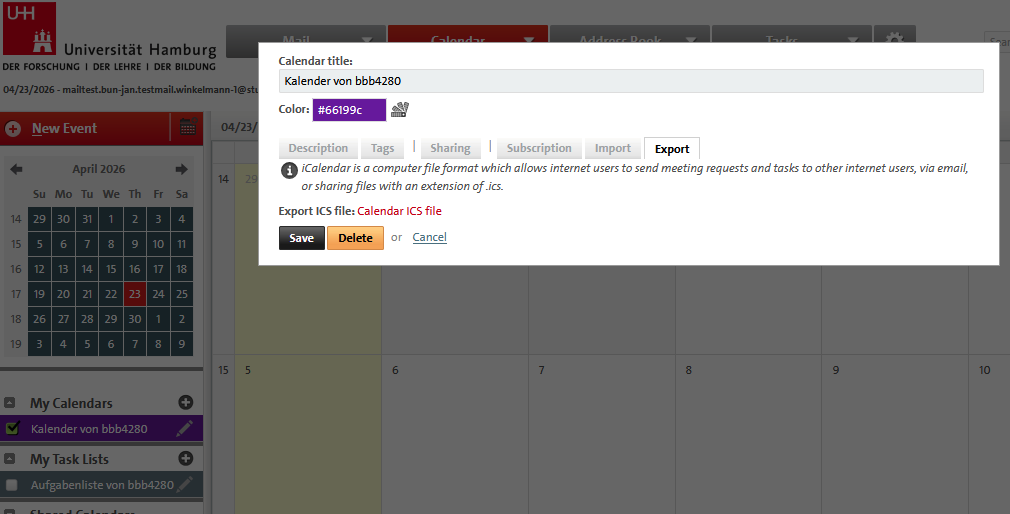
- Clicking the small pencil icon next to the calendar you want to export opens a small editing window.
- Switch to the “Export” tab.
- Click the “ICS Calendar File” link and save the ICS file locally.
Be sure to note the file name and the file path.
Part 2 - Import the Calendar into UHHCloud
- Open the Calendar section in UHHCloud.
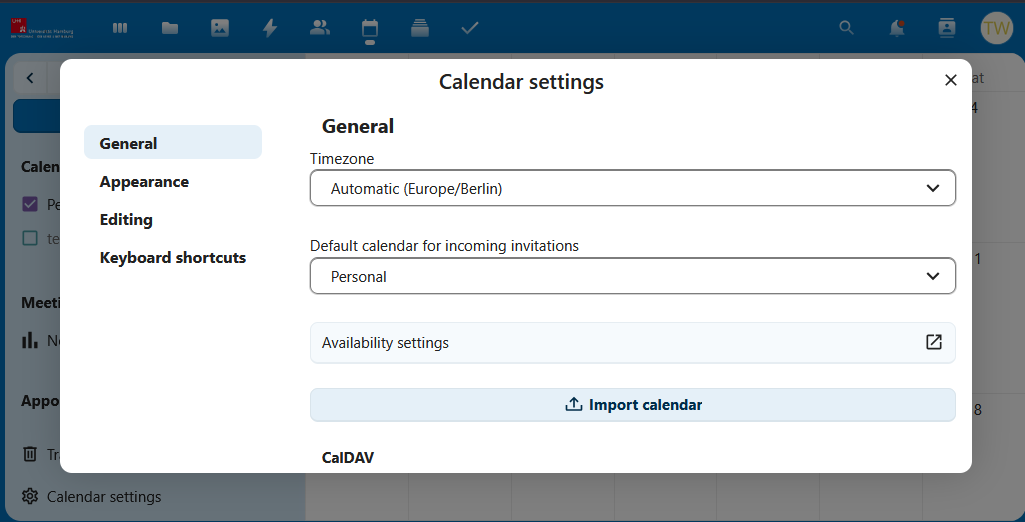
- Select “Calendar Settings” (the gear icon) in the bottom-left corner.
- In the window that opens, click “Import Calendar”.
- In the file selection window that opens, select the ICS file created in Part 1.
- Select the destination calendar. This is usually the “Personal” calendar.
Existing appointments will neither be overwritten nor duplicated during import.