Migrate contacts from the "old Surfmail" webmailer
If you want to continue using the address book from the previous Surfmail application, you must export it and import it into either the new Surfmail or UHHCloud.
Part 1 - Save the old address book
- Go to https://surfmail-alt.rrz.uni-hamburg.de and log in with your B-ID.
- Switch to the “Address Book” section at the top.
- Select “Import/Export” on the left, then under “Export Address Book”, choose “vCard (3.0)” as the export format.
- Select the address book you want to export and save it locally by clicking “Export”.
Be sure to note the file name and the file path.

Part 2 - Importing Your Address Book into Surfmail or UHHCloud
If you want to use your student email account on your mobile phone or in an app on your laptop or tablet, import your address book into UHHCloud. If you want to access your student email account exclusively via a web browser, choose the new Surfmail.
Importing into the new Surfmail
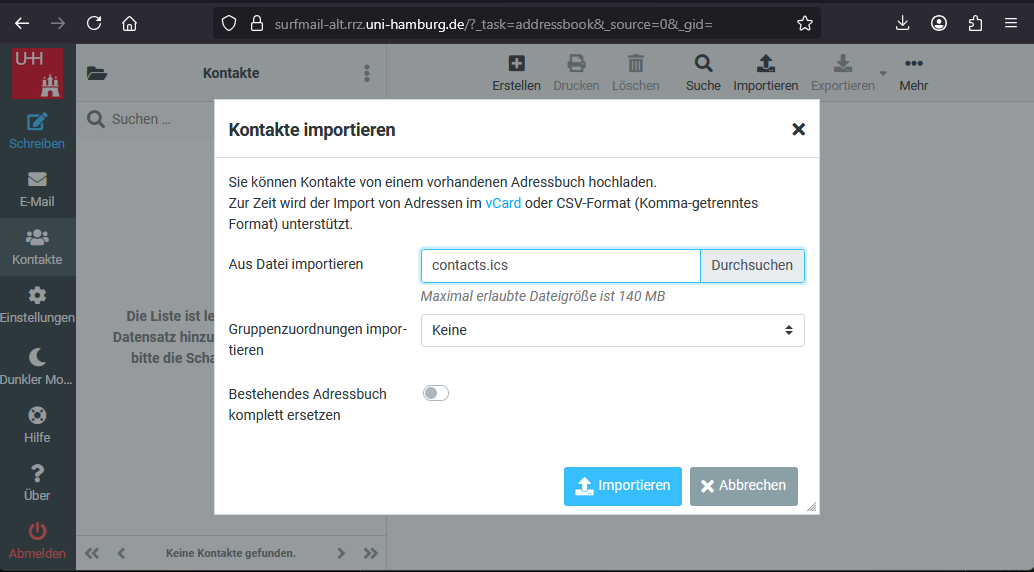
- Go to “Contacts” in Surfmail
- Select “Import” from the top bar.
- In the window that opens, click “Browse” to select the ICS file you created in Part 1.
- Import the address book into Surfmail by clicking “Import”.
Existing contacts will be skipped during import unless you previously selected the option “Completely replace existing address book”.
Import to UHHCloud
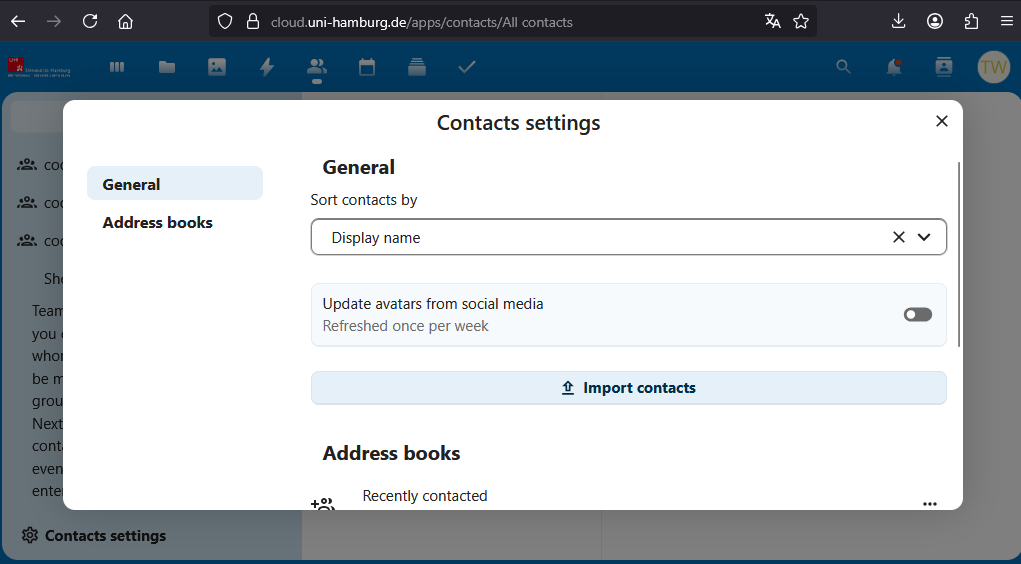
- Open the Contacts section in UHHCloud.
- Select “Contacts Settings” (the gear icon) in the bottom-left corner.
- In the window that opens, click “Import Contacts”.
- Now click “Select local file” and, in the file selection window that opens, select the ICS file you created in Part 1.
Existing contacts will not be overwritten.