As of: 09/2025 (remote maintenance only for FMD users)
|
Beforehand:
Due to various changes and updates happening simultaneously, the problem may appear quite complicated.
We are working to make large parts of these instructions obsolete by offering a bookable service for FMDs / a script for private devices. Please first check whether you are using both OneNote programs simultaneously with different data. If this is the case, please write to rrz-serviceline"AT"uni-hamburg.de .
|
Problem
Switching from OneNote for Windows 10 to OneNote in the OfficeSuite with synchronization problems.
These look like this, for example:

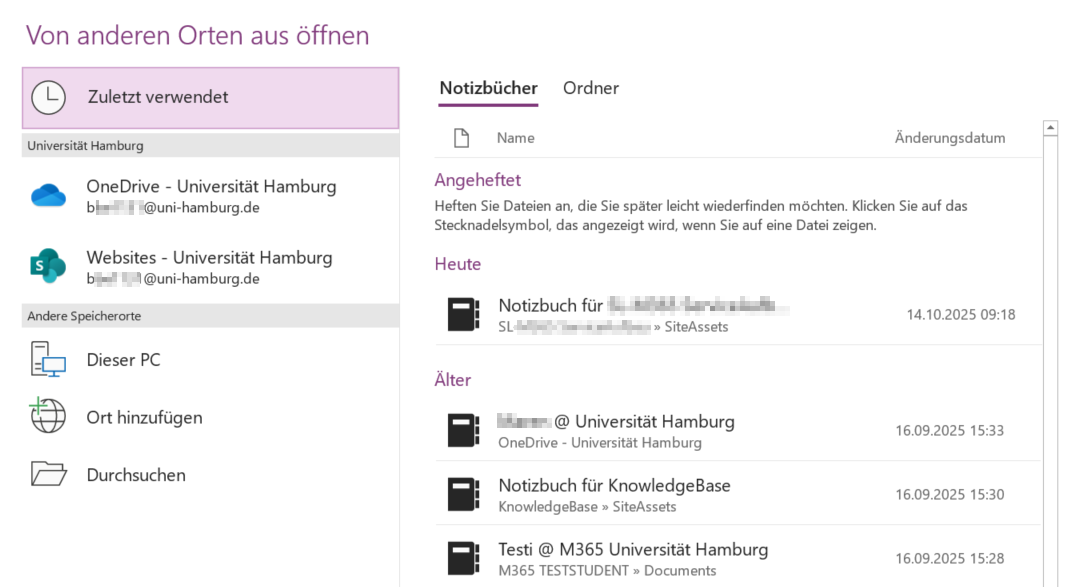
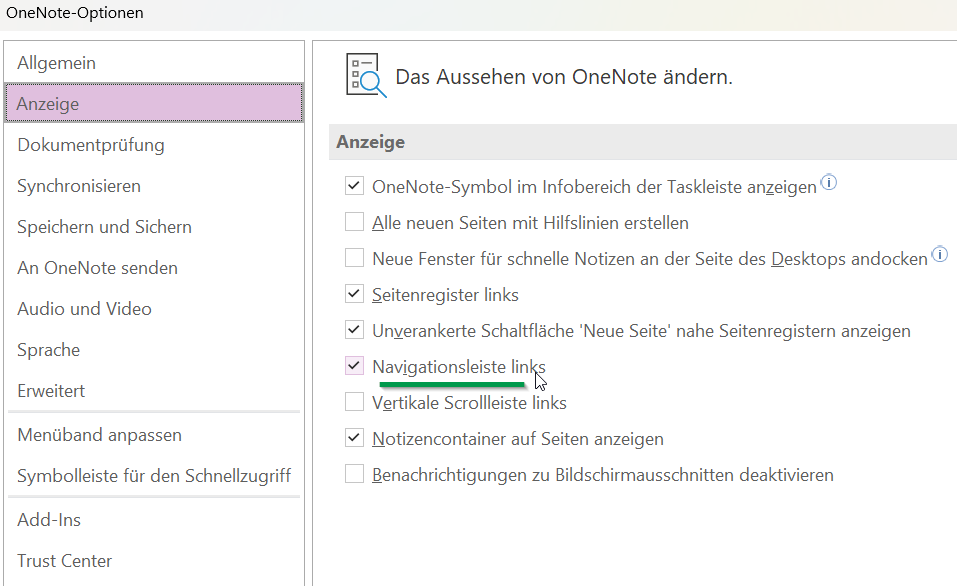
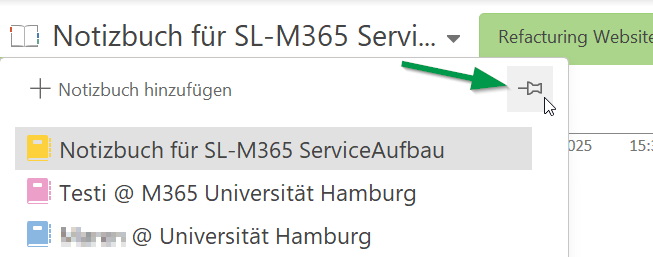
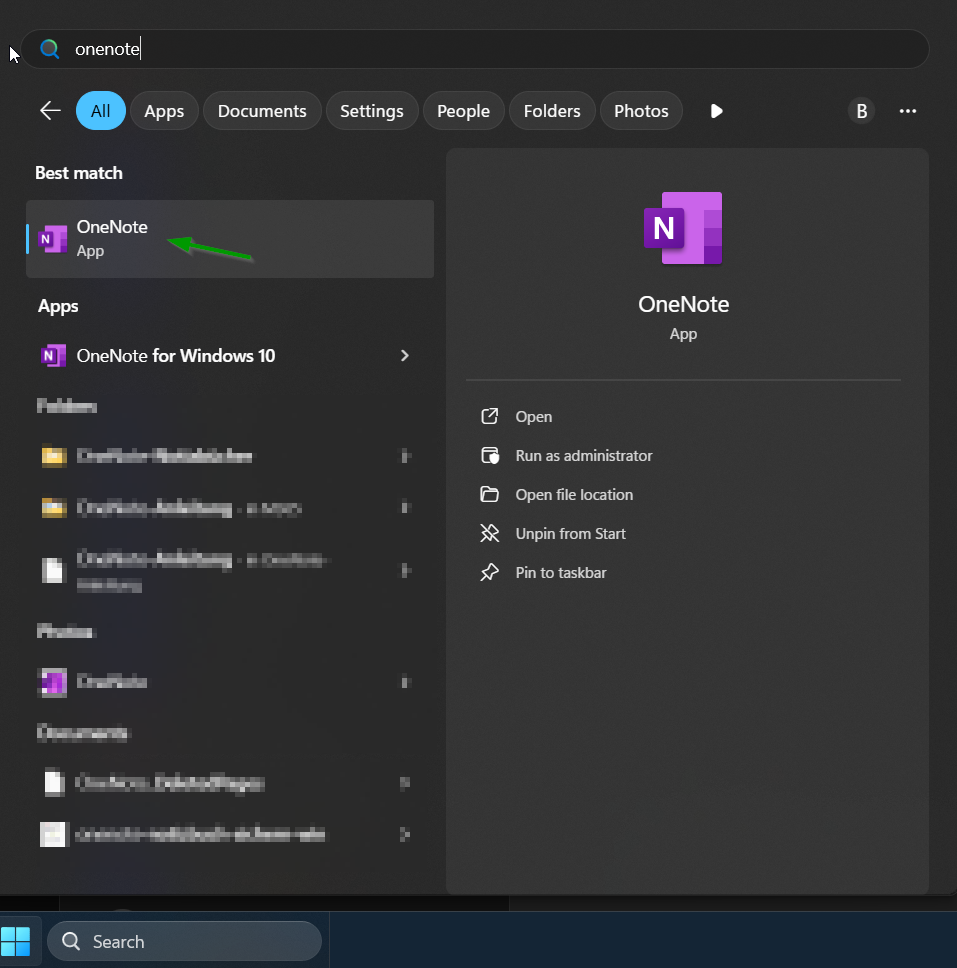
If you are only having problems finding the other OneNote, please refer to these instructions for switching OneNote.
If you are unable to restore all data from the other OneNote, the backup is not working, or you are missing data, please continue reading. You may not have re-integrated your OneNote after switching your M365 account to your user ID, and the data now needs to be transferred.
Solution
Copy the cache from one program to the next.
You can follow the instructions yourself or request remote maintenance at rrz-serviceline"AT"uni-hamburg.de .
Please specify time slots in the coming days and a phone number where you can be reached.
A) OneNote cache for Win10
If you are already working with other notebooks at a different level in OneNote in the Office Suite (ONOS), do not continue here and please contact rrz-serviceline"AT"uni-hamburg.de .
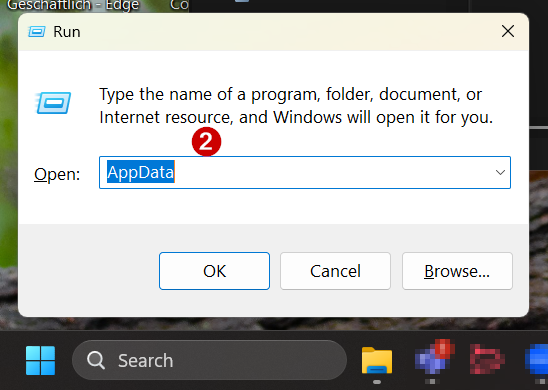
- Press the Windows key and R simultaneously.
- In the window that appears, enter AppData.
-
Windows Explorer appears—the Windows folder system.
- Copy (select and press Ctrl and C):
\Local\Packages\Microsoft.Office.OneNote_8wekyb3d8bbwe\LocalState\AppData\Local\OneNote\16.0\cache
- Click once in the field above with the directory path and once behind AppData.
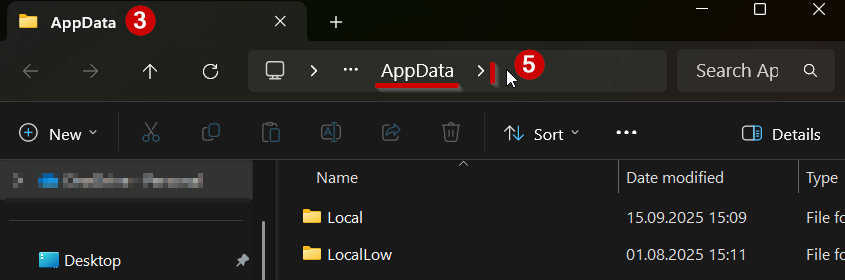
- Then press Ctrl and V and Enter.
(If the path cannot be opened, please ensure that there is exactly one backslash \ between AppData and Local, not zero and not two.)
-
You will end up in the left-hand side of the two folders required:
(The white text fields have been added for orientation purposes.)
Move it so that it is on the left and you can easily open a second folder.

B) Cache from OneNote in the Office Suite
- Press the Windows key and R simultaneously.
- In the window that appears, enter AppData.
- E
Windows Explorer appears—the Windows folder system.
-> Drag it to the right of the first window!
- Copy (select and press Ctrl and C):
\Local\Microsoft\OneNote\16.0\cache
- Click once in the field above with the directory path and once behind AppData.
- Then press Ctrl and V and Enter.
(If the path cannot be opened, please ensure that there is exactly one backslash \ between AppData and Local, not zero and not two.)
- They will be placed in the B-folder of the two required folders. Drag it to the right of the first one.
C) Clearing the ONOS cache
|
Note:
If you are already working with other notebooks at a different level in OneNote in the Office Suite (ONOS), do not continue here and please contact rrz-serviceline"AT"uni-hamburg.de . |
Otherwise, continue as follows:
- Click on the last window opened with the ONOS cache (cache from OneNote in the Office Suite).
- And press Ctrl and A
- and entf - this deletes all existing files in the folder
Don't worry, these will be replaced with the desired data in a moment.
D) Inserting the ON10 cache
- Click in the left window with the ON10 cache (cache from OneNote for Windows 10).
- And press Ctrl and A
- Copy the content - Press Ctrl and C
- Click in the last opened B-right window with the ONOS cache (cache from OneNote in the Office Suite).
- Paste the cache - press Ctrl and V
E) Move sections
- Opening OneNote from the Office Suite (ONOS) - switching from OneNote
- If necessary, sign in to OneNote with your M365 account and open the notebooks you need from the cloud.
- You will now find “incorrectly inserted sections” in the drop-down menu with the notebooks—click on it.
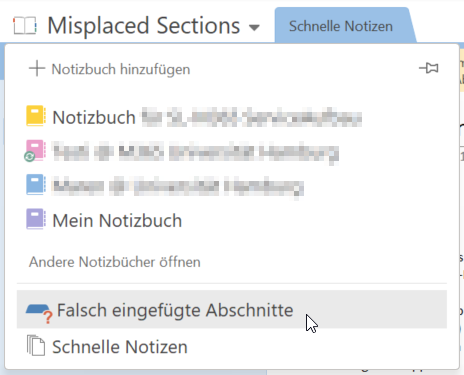
- Es öffnet sich ein Sonder-Notizbuch
(mit den "falsch abgelegten" Abschnitten aus dem Notizbuch, dass Sie unsychronisiert in ON10 genutzt hatten)
- Klicken Sie auf den gewünschten Abschnitt mit der rechten Maustaste
- und wählen Sie verschieben oder kopieren.
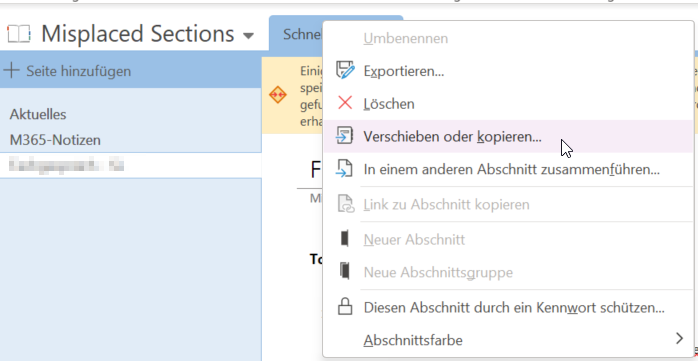
- You can now select the open notebook where you want to save this section.
(If it already exists, a 2 will be added to the section name.)