
OneNote - load a notebook
Open OneNote.
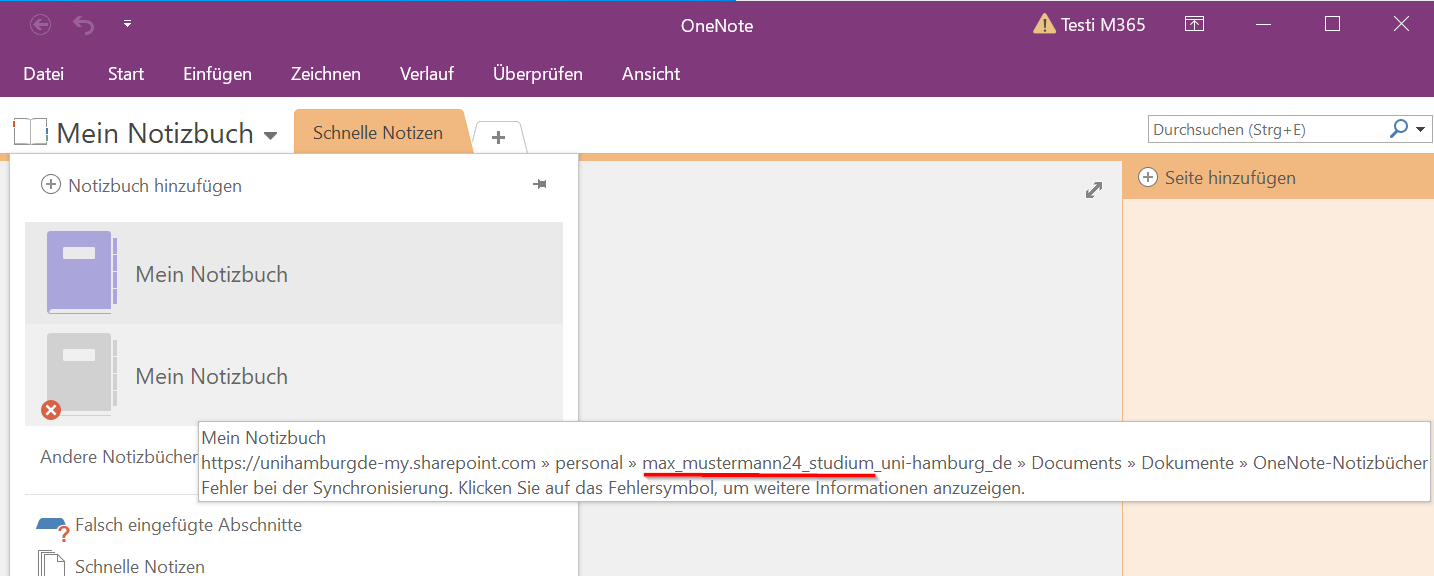
In many cases, the URLs/links still contain the old login name at the navigation point for the account.
Many programs can adjust this dynamically. OneNote is one of the programs that cannot do this.
Please ignore the message stating that you need to log in again. You only need to do this once at the beginning.
Please also ignore the message “Unsupported server: The server you are trying to access uses an authentication protocol that is not supported by this version of Office.”
To sync the notebook again:
- Open www.microsoft365.com
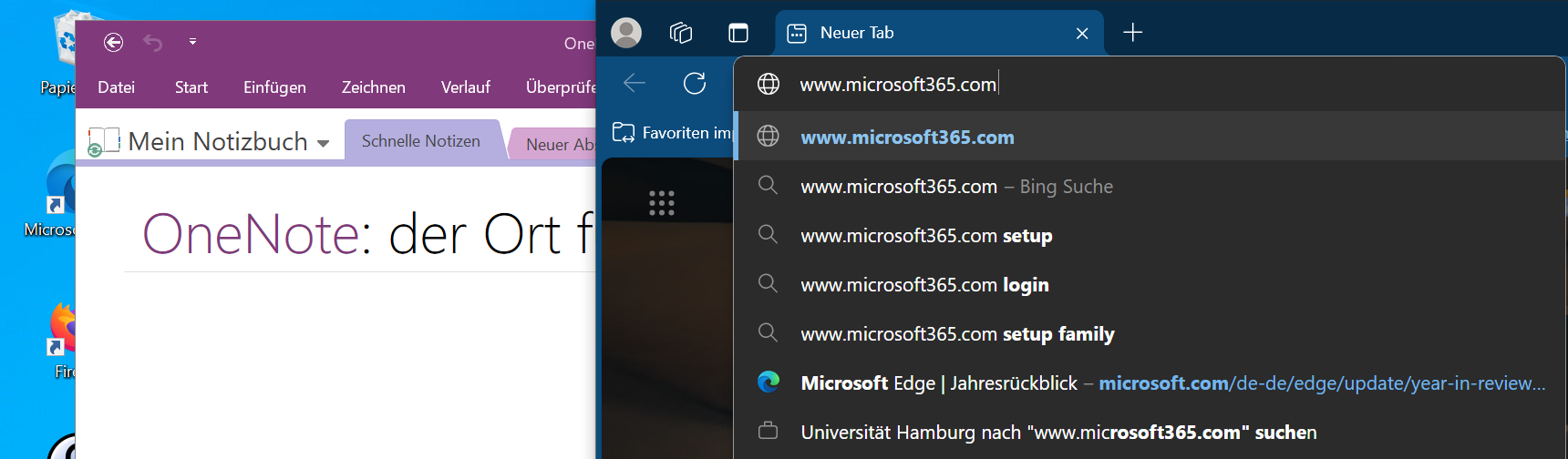
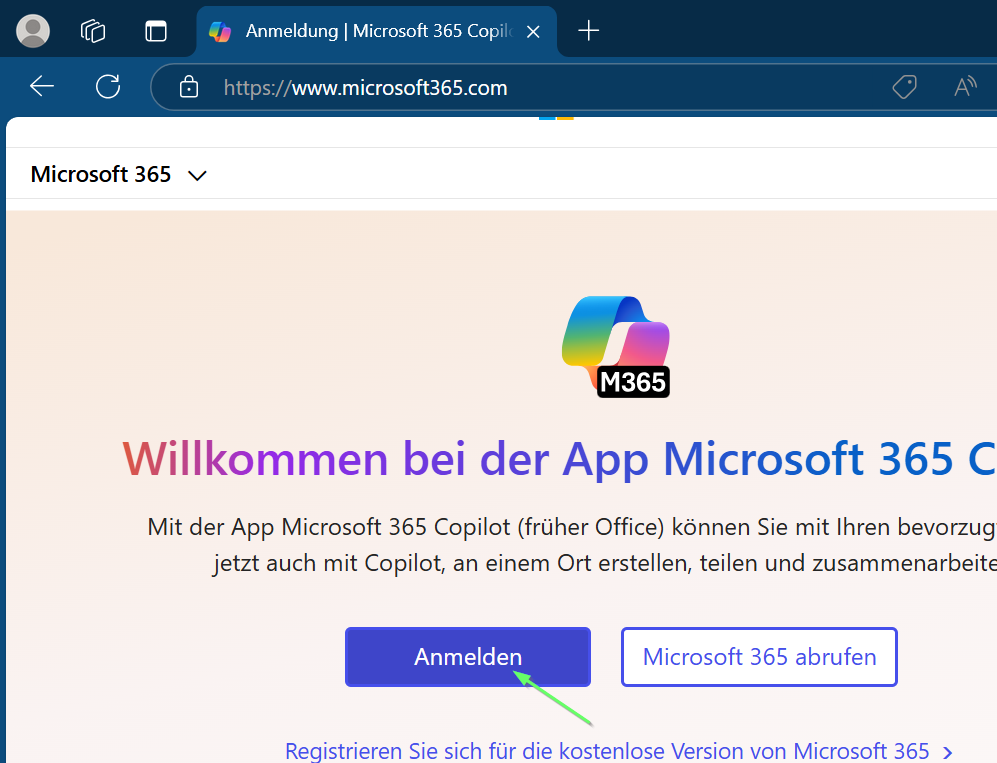
- Log in with your new login name and user ID (in the format: bax1234@uni-hamburg.de).
- You may need to use the “Use another account” button.
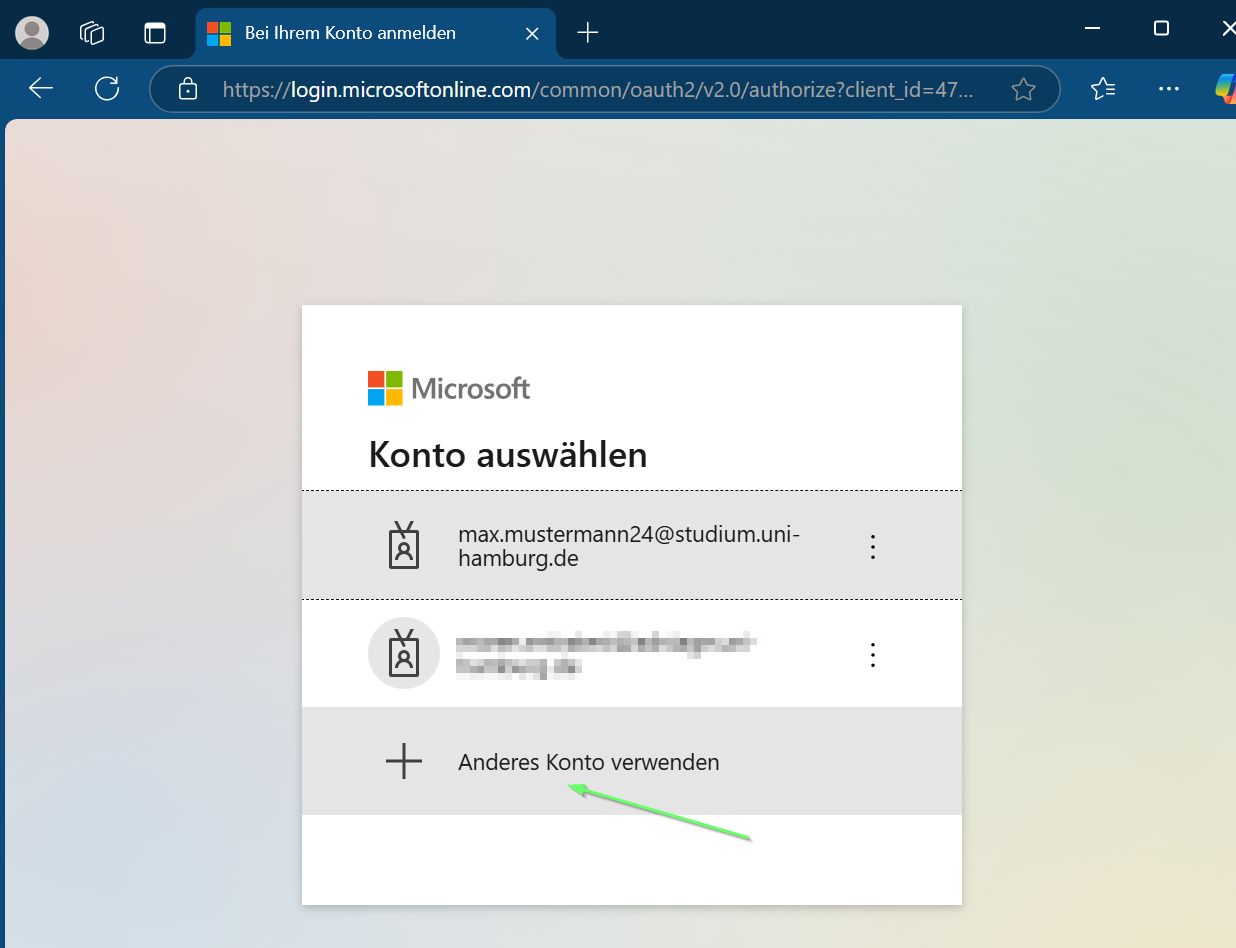
- You may need to use the “Use another account” button.
- Find your notebook.
- Either in Quick Access or use OneDrive. You can access OneDrive via the arrow at the bottom right / “Search all files.”
- Or via (1) https://unihamburgde-my.sharepoint.com/

- You can look in My Documents (2) and open it directly.
- Or you can use the search function (3) to find (4) and open it.
- Once you have found the notebook in OneDrive:
Check that the current status is correct. Close the notebook in Desktop OneNote and open it as described in step 7. -
If you cannot find the notebook:
The copied link will result in a 404 error. Please highlight your name in the URL (as a student, also “studium_”).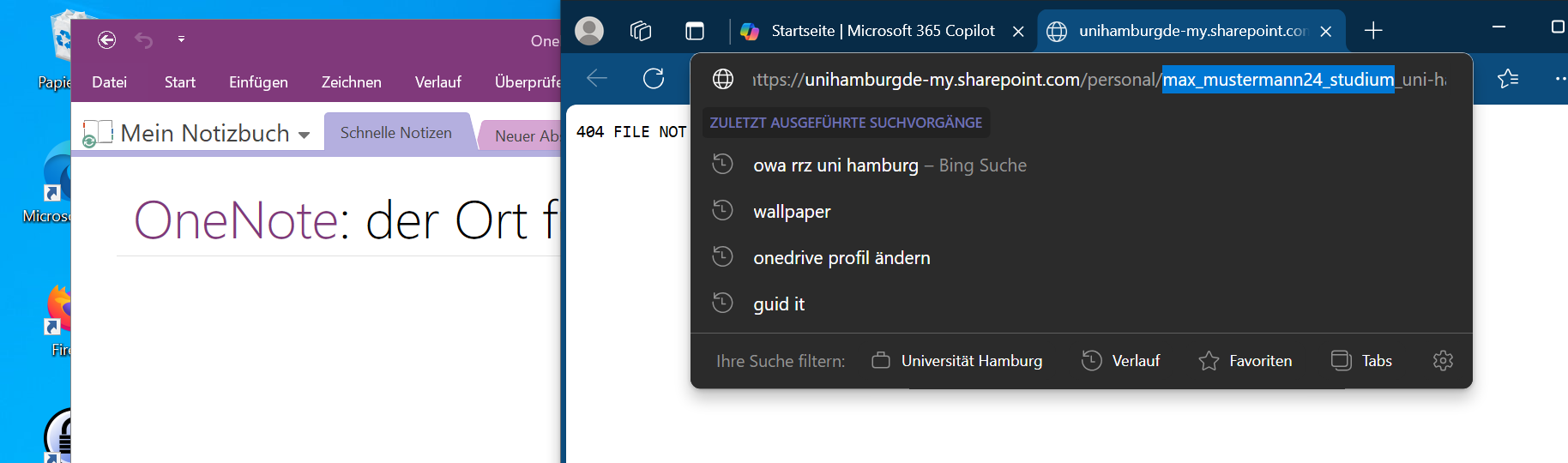
- Replace this part with your user ID and load this URL.
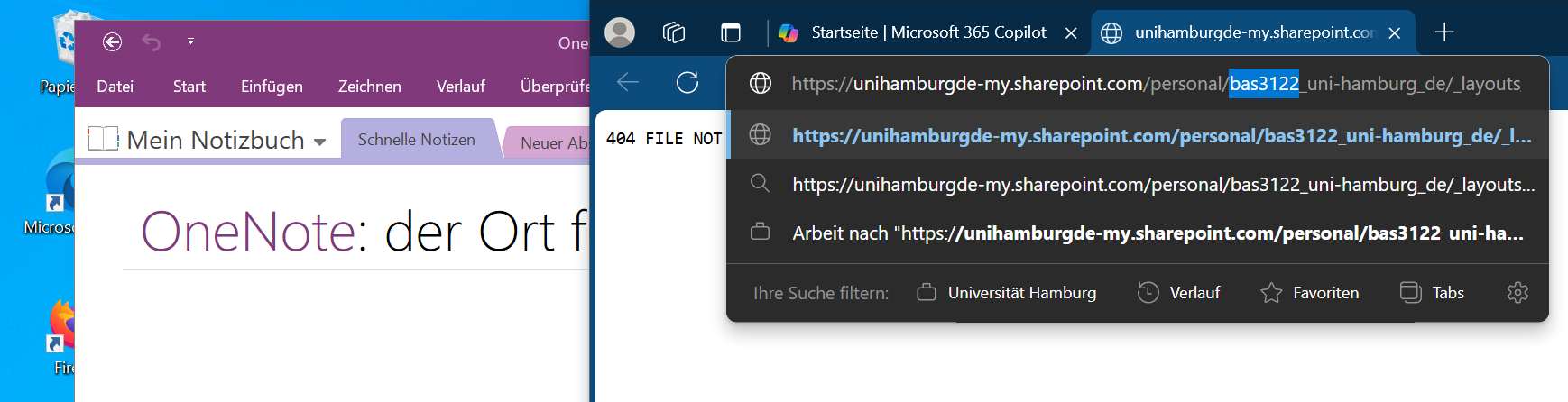
- Your file or OneNote notebook should now open.
Check the status of the online notebook. If it appears to be correct, please close the notebook in the desktop version.
Use the “Edit” button (1) with the pen icon and select “Open in desktop version” (2).- If no notebook opens at this point, please ensure that the notebook with this name is closed.
If it still does not work or OneNote for Win10 opens, please check the default apps.
To do this, press the Windows key and enter “default apps.”
Select the application with this name. The settings will open.
You can enter “OneNote” in the search field at the top. Select the normal OneNote, not OneNote for Win10, and check that all entries point to the normal OneNote.
If this does not work either, please contact us at rrz-serviceline@uni-hamburg.de(rrz-serviceline"AT"uni-hamburg.de?subject=RRZ#SRQ-M365%20Reintegrade%20OneNote) .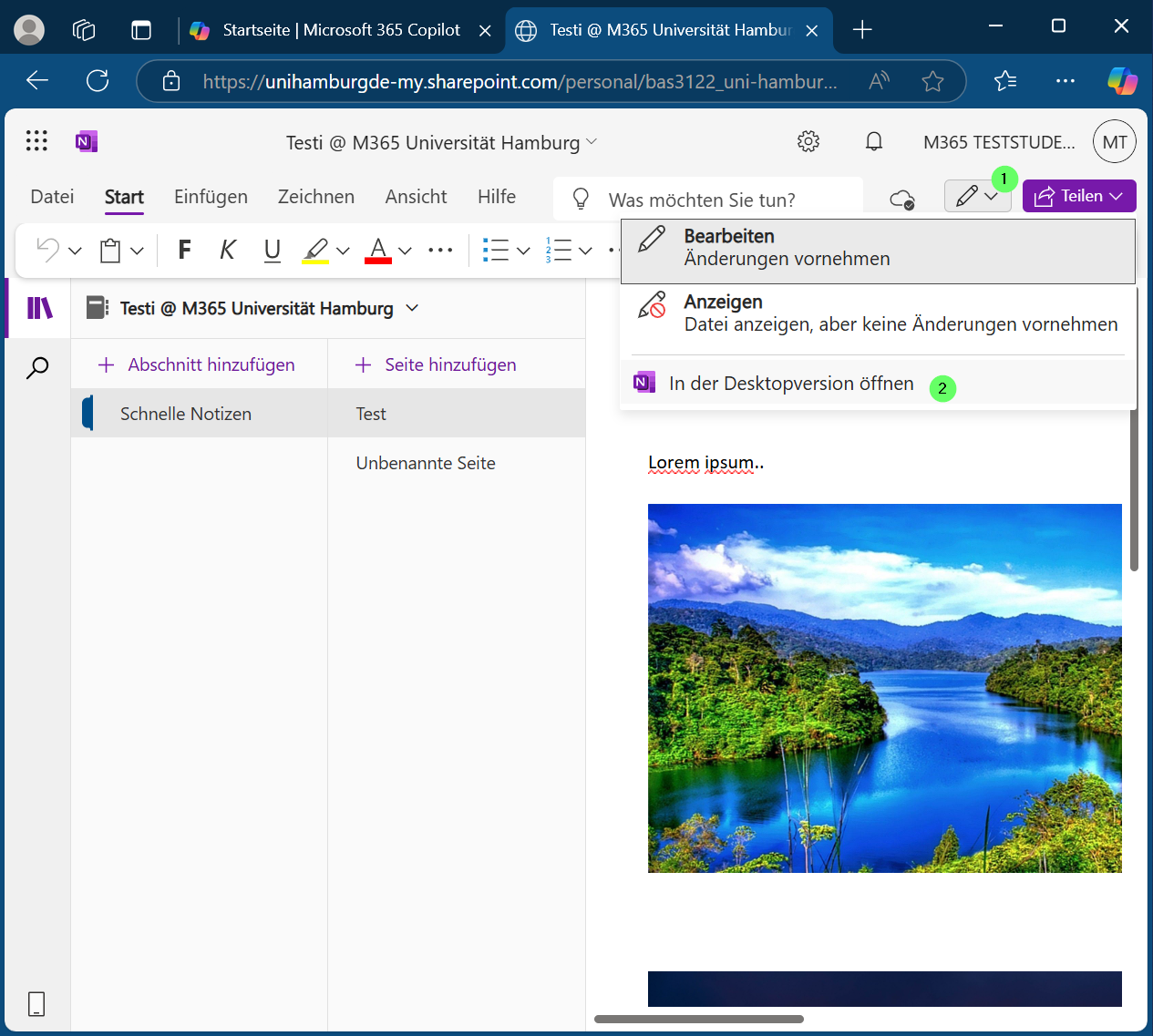
- If no notebook opens at this point, please ensure that the notebook with this name is closed.
- You will now be asked if you want to open this link with your computer.
It is up to you whether you want to always allow M365 to open links directly without asking. Now click on (1) “Open”.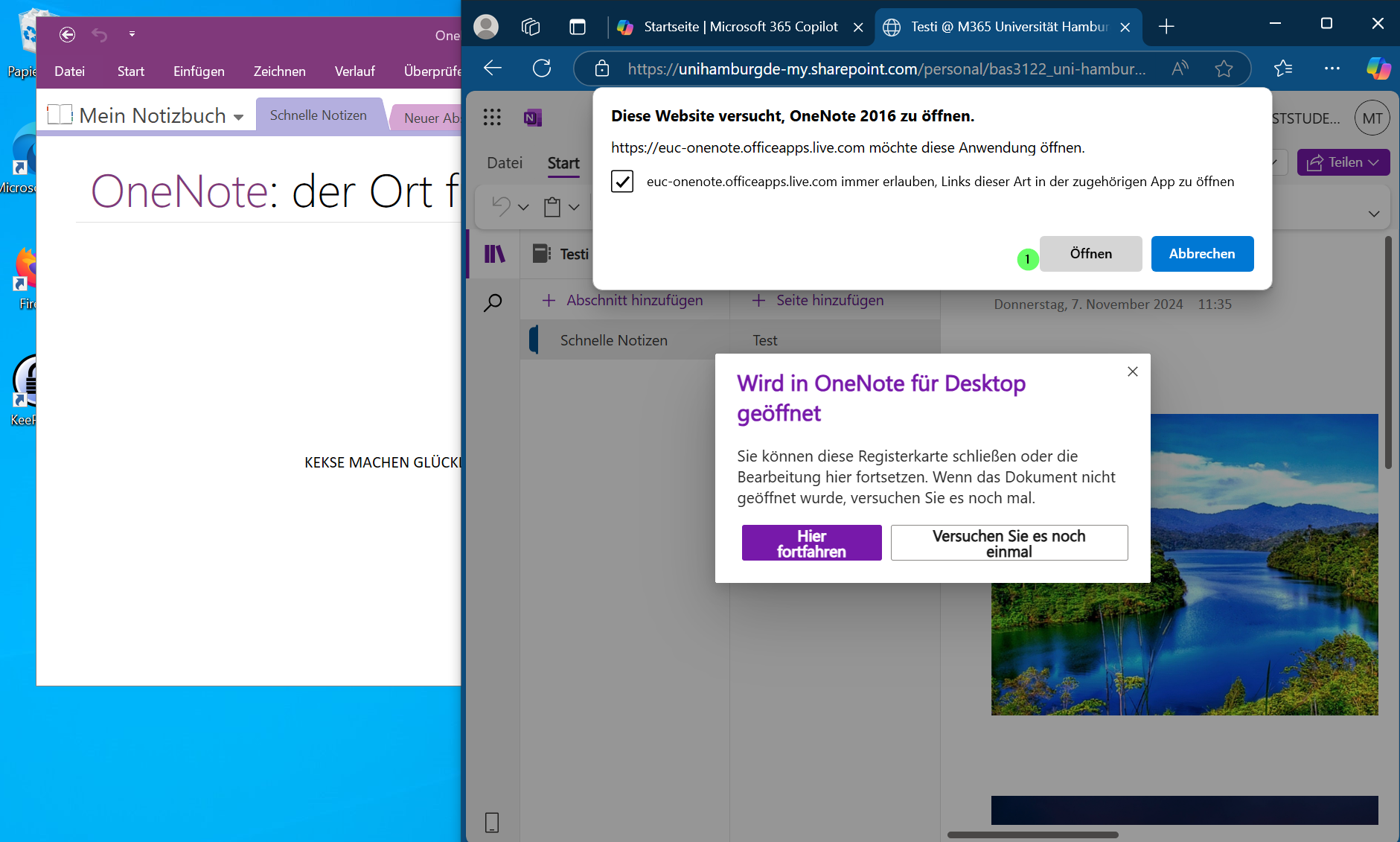
- A Windows security prompt may now open, as you have opened a command from the browser. The identifier can now be seen in the URL to be opened.
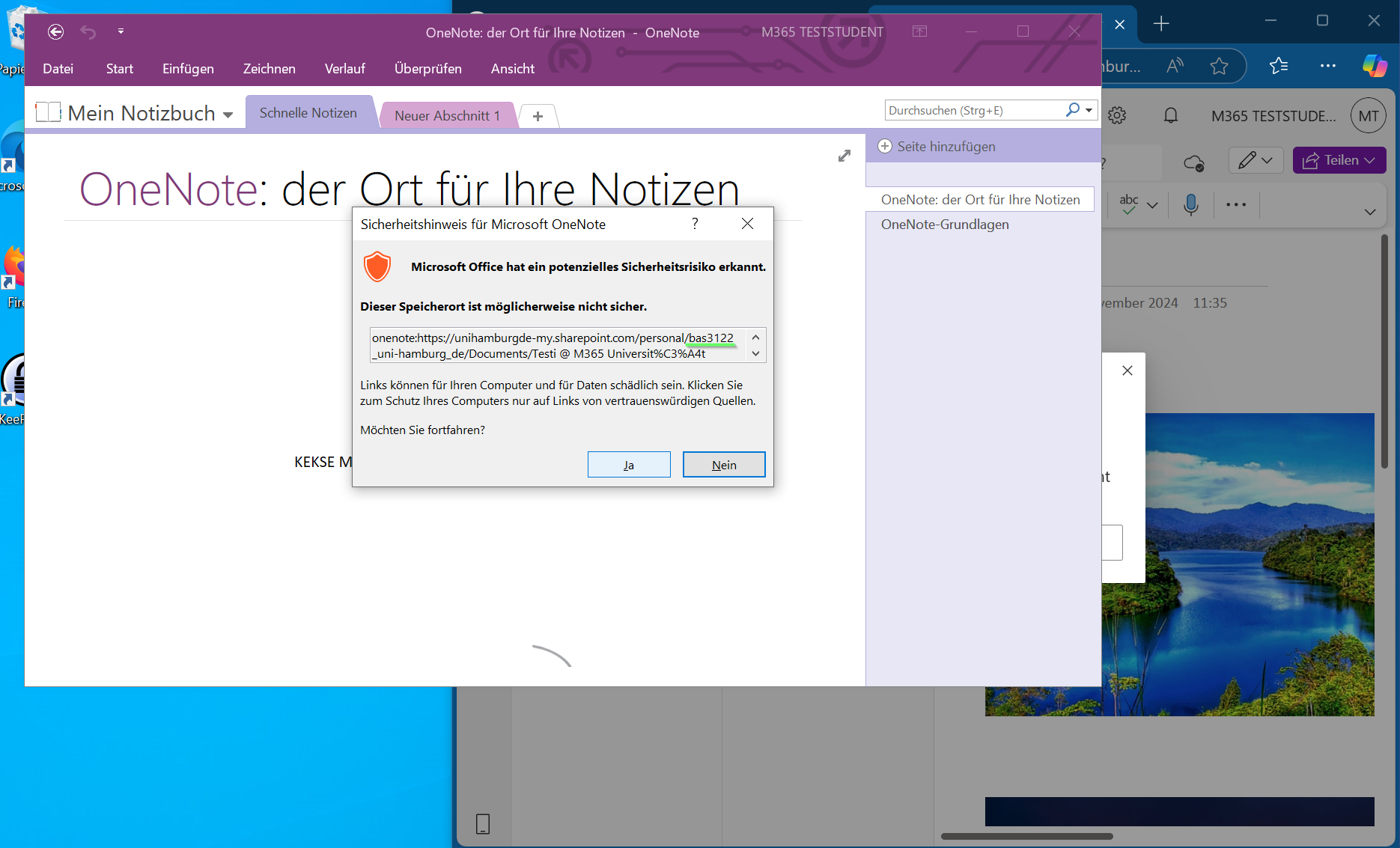
- The OneNote notebook should now open.
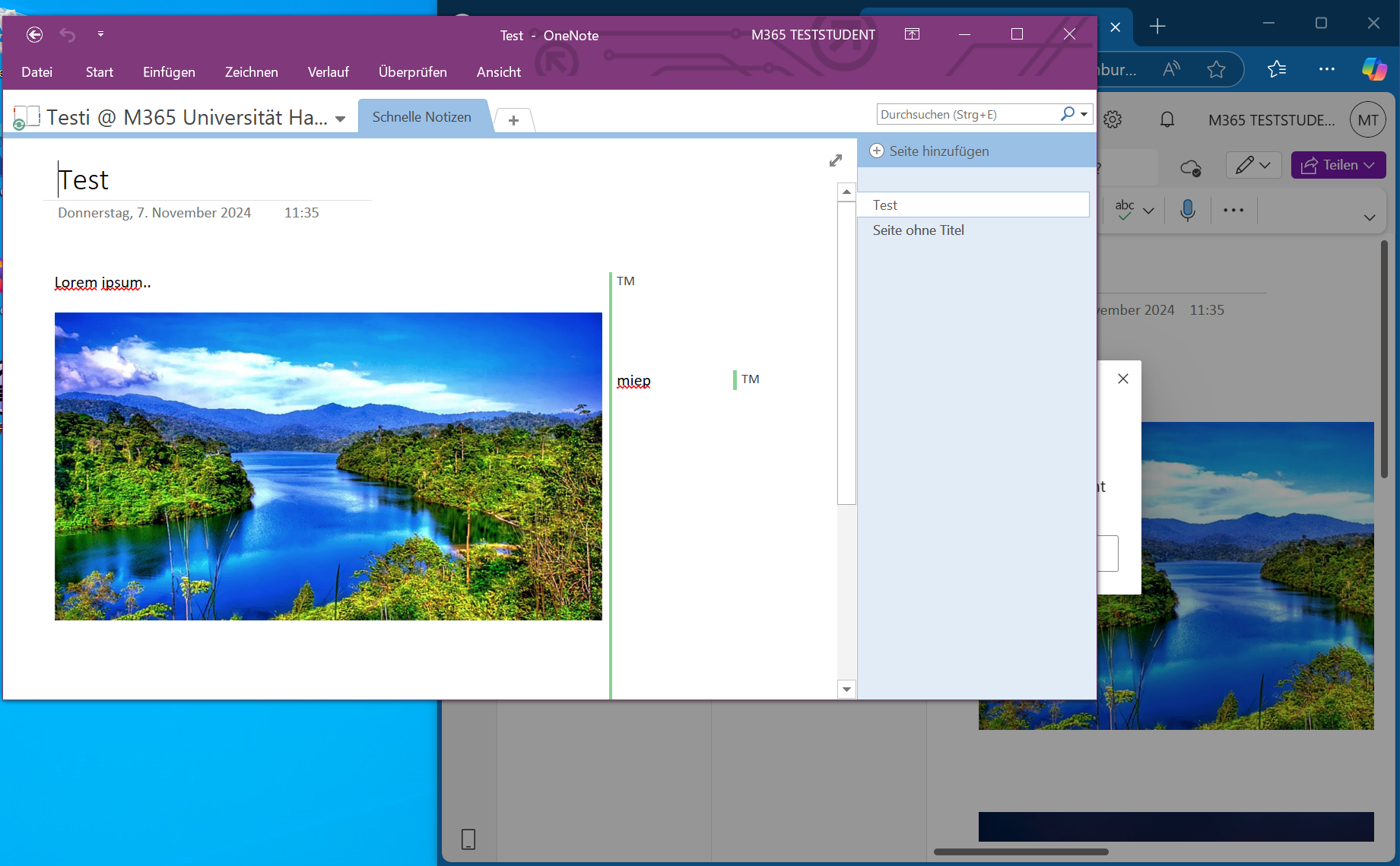
- Shared items or data in notebooks should not have changed.
If you have any questions or problems, please contact the RRZ-ServiceLine.