
OneDrive - sync again (not on FMDs)
Desktop OneDrive
(OneDrive is currently not available on FMDs)
On Windows:
To synchronize the content in OneDrive or reset the desktop program, you can log out once, restart your computer, and log back in. This should load the correct file paths in the cloud directory and display your files again.
If you are still experiencing problems, you can log out and log back in on the entire operating system:
- Settings → Accounts → Access work or school,
- log out from M365 account
- restart the computer
- after this you can log back in
You can also Clear OneDrive cached credentials (Microsoft instructions) or Reset OneDrive (Microsoft Instructions).
For instructions for operating systems other than Windows, search online and refer to the Microsoft support pages using the keywords:
Reset OneDrive, (your operating system version)
Finding missing files
In the cloud
If you cannot find files and/or receive a 404 error on a browser page:
- Open https://unihamburgde-my.sharepoint.com/my?
- You can use the search field here to find the file.
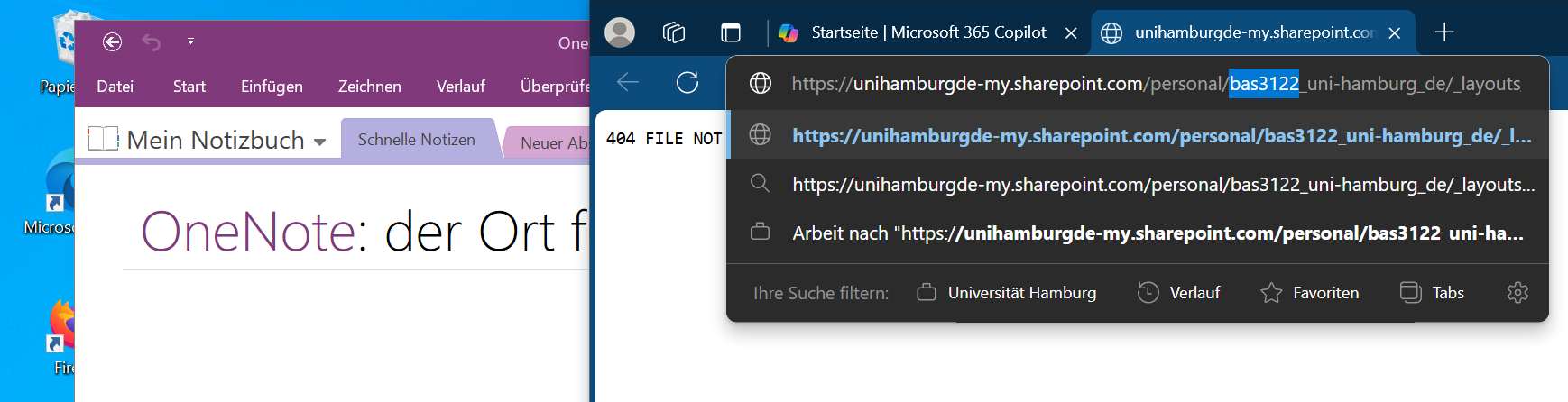
- If this does not work, replace your name in the URL on the 404 page with your user ID.
- Please enter your name in the URL (as a student, also “studium_”).
- And enter your user ID here.
File not in the cloud
If the file is not in the cloud, you can use the “Recover unsaved documents” function in Word, for example, by going to File -> Open and clicking on the button at the bottom center. Here you can see whether the file you are looking for is still available locally.