
Password & Login
There are two different ways to log in.
Login with user ID - since 2025
Login name
- Microsoft login dialog:
userID@uni-hamburg.de (e.g., in the form bax1234@uni-hamburg.de)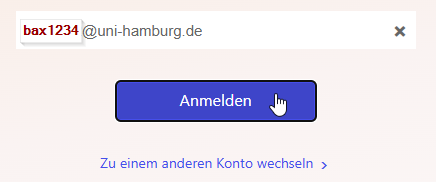
Please note: Students also register with @uni-hamburg.de without “studium.”.
- UHH-Login:
user ID (e.g. bax1234) and password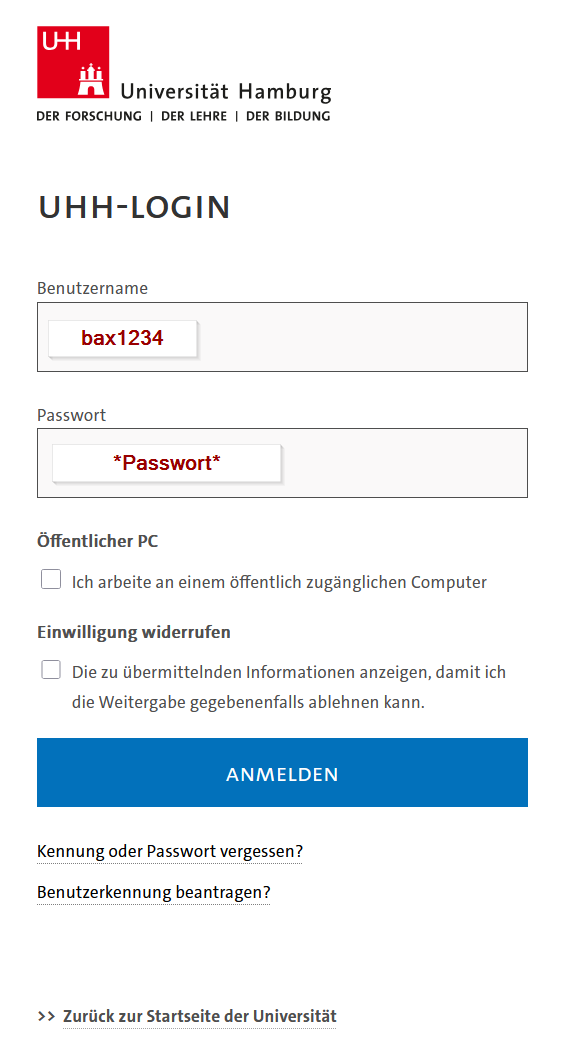
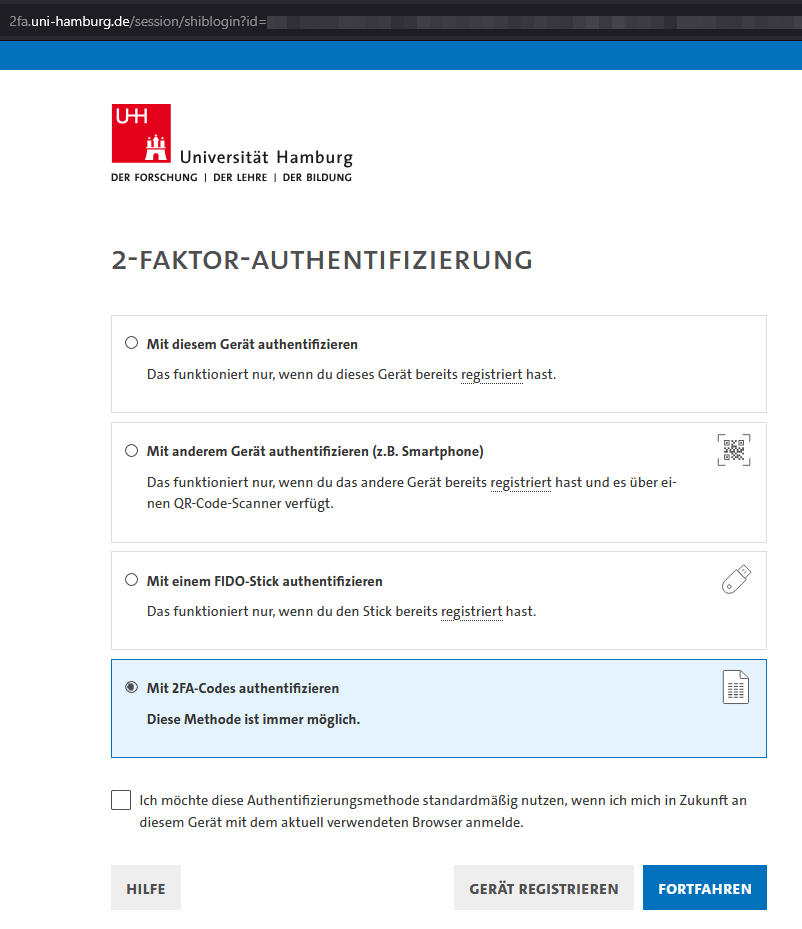
- and 2-FactorAuthentification - choose an option, that suits you.
Login for guests or old registration (without user ID)
Login name
You have been invited as a guest with an email address to the Microsoft 365 area of the University of Hamburg.
Use this email address as your login name in the M365 portals, programs, or apps:
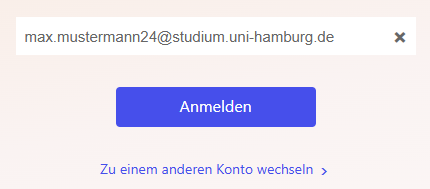
(All employee accounts have already been converted.
As of December 1, student accounts will also be converted to the user ID.
Please note the Login change in 2025 and case 1. )
You have chosen your own password for this Microsoft 365 account.
Or your organization's M365 account has been recognized.
The password entry screen should show the university at the top and look something like this:

Two-Step Verification
After entering your password, you will be prompted to authenticate / strong login.
Microsoft promotes the use of “multi-factor authentication” with the Microsoft Authenticator app for account security.
Login problems?
If Teams displays the message “New registration required” or “Additional login details required,” please try the following:
Ensure you have the correct password for your M365 account. If you have already migrated, this is the password for the user ID.
- Sign out of Teams.
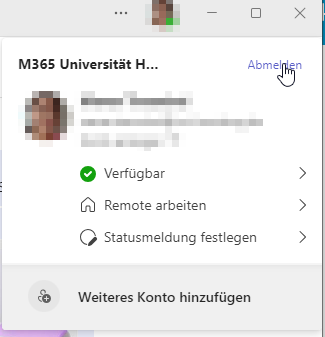
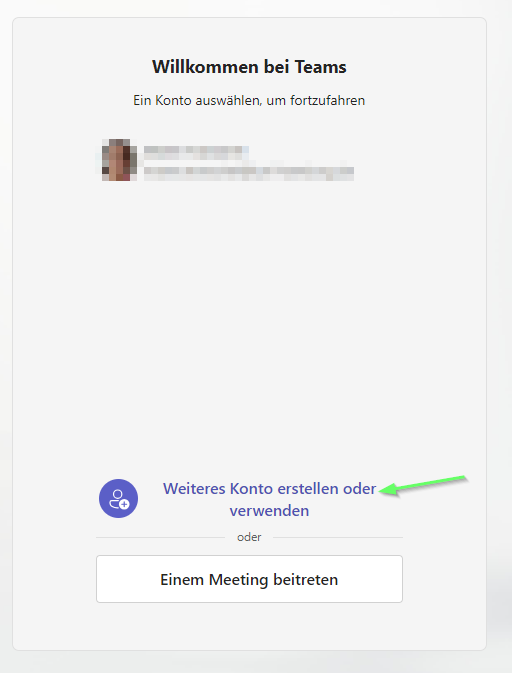
- If clicking on the existing account did not work, do not log in directly via the account displayed. Please use the option “Create or use another account”.
-
Nevertheless, please enter your current login name as usual in the login screen. After the changeover in 2025, the format will be bax1234@uni-hamburg.de.
- Enter the user ID password and complete 2FA. Teams should now reload the current status of the account and the message or problems should disappear.
- If this does not work, please use the “Use another device” option in 2FA, copy the link below the QR code, and enter it into your browser. Authenticate yourself here. Teams should now redirect you.
Please contact the ServiceLine if problems continue to occur.